Parts Implemented by Seda Yıldırım
The following three tables were implemented: Fixtures, Player Statistics, and Team Statistics. The tabs Fixtures and Statistics can be seen on the navigation bar above the site interface. The Player and Team Statistics pages were grouped to one tab to provide better navigation since the navigation bar is in alphabetical order. Both pages can be seen on the drop down menu.
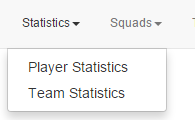
Figure 1: The drop down for the Statistics pages
All of the fields in the forms are necessary to fill except the search form. If the user does not enter a required data, a warning is shown.
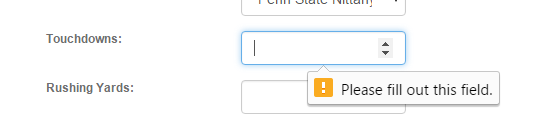
Figure 2: The empty field warning
Fixtures
Fixtures page shows the seasonal scores of the teams in the database. From the main page, the user can navigate to either the search page or the edit page.

Figure 3: Overlay of the fixtures page
The search page features a form to search the database for a team name. The exact input of the team name is not required, though the search function is case sensitive.
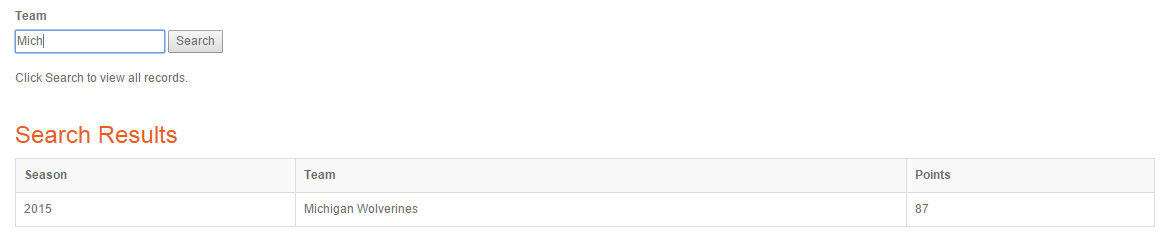
Figure 4: Search page
Note
If the form is left blank, the page displays the complete fixtures table.
The edit page displays two features: add and delete. From the edit page, users can also navigate to the update page, where they can change any fixture data. Users can enter new a fixture data with the add form. The form requires the selection of season and team data from the respective drop down menus. The points of the team can be entered manually.
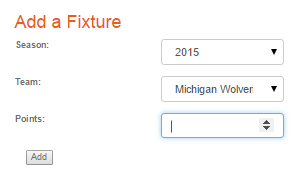
Figure 5: Add feature
Users can also delete any fixture data on the edit page. The delete feature is displayed right below the add feature. The feature displays a checklist, from which the user selects the fixture they want to delete. Only one fixture can be deleted at a time.
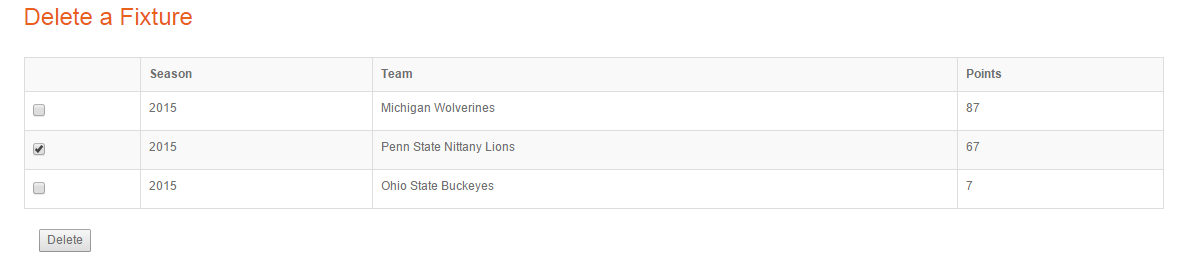
Figure 6: Delete feature
The update page displays a checklist of all the fixtures. From here, the user can select the team they want to update, and can enter the respective values. The page redirects to itself, showing the current list of fixtures.
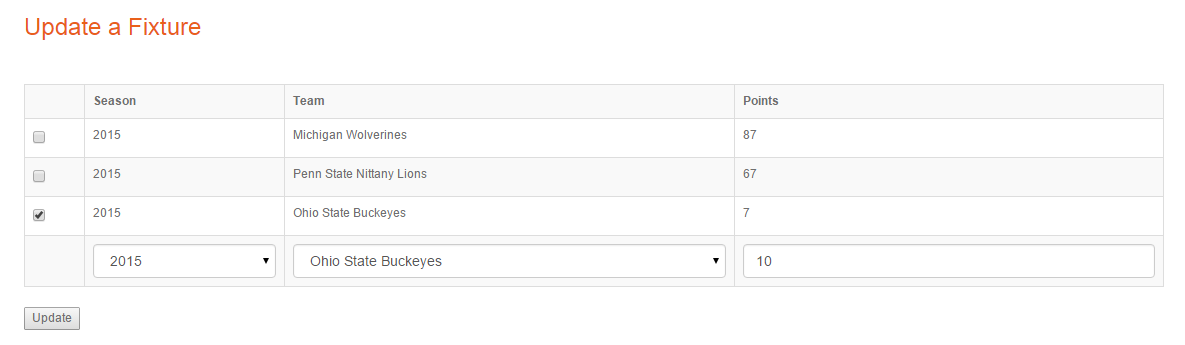
Figure 7: Update page
Player Statistics
Player statistics page displays the various seasonal statistics regarding the players in the database. Here, from the main page, the user can navigate to either the search page or the edit page.
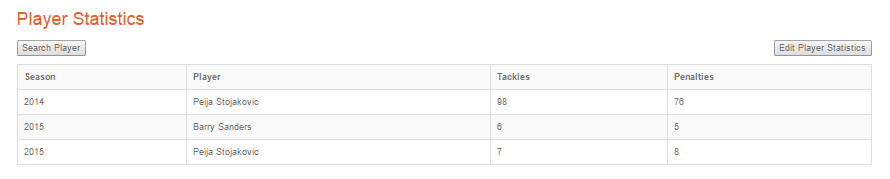
Figure 8: Overlay of the Player Statistics page
The search page features a form to search the database for a player’s statistics, with the players name as the search query. The whole input of the player’s name is not required, though the search function is case sensitive.
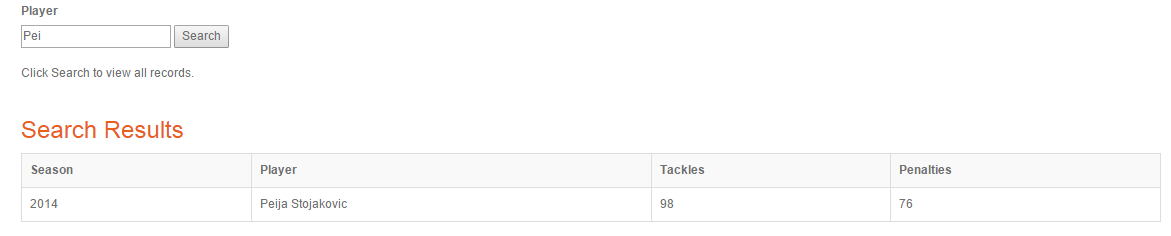
Figure 9: Search page
Note
If the form is left blank, the page displays the current statistics of all the players.
The edit page displays two features: add and delete. From the edit page, users can also navigate to the update page, where they can change any player’s statistics. Users can enter a new player’s statistics with the add form. The form requires the selection of the season and the player data from the respective drop down menus. The statistics values of the player is entered manually.
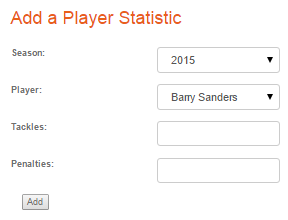
Figure 10: Add page
Users can also delete any statistics on the edit page as they wish. The delete feature is displayed right below the add feature. The feature displays a checklist, from which the user selects the player whose statistics data they want to delete. Only one player statistics data can be deleted at a time.

Figure 11: Delete feature
The update page displays a checklist of all the player statistics. From here, the user can select the player whose statistics they want to update, and can enter the respective values. The page redirects to itself, showing the current list of all players and their statistics.
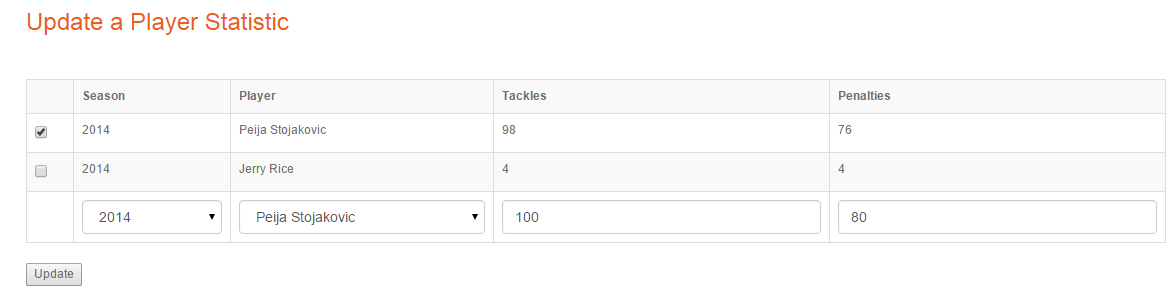
Figure 12: Update page
Team Statistics
Team statistics page displays the various seasonal statistics regarding the teams in the database. Here, from the main page, the user can navigate to either the search page or the edit page.
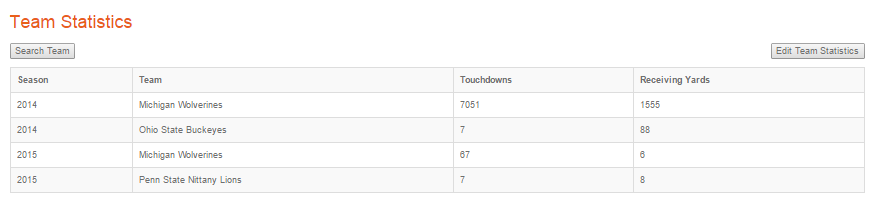
Figure 13: Overlay of the Team Statistics page
The search page features a form to search the database for a team’s statistics, with the team name as the search query. The whole input of the team’s name is not required, though the search function is case sensitive.
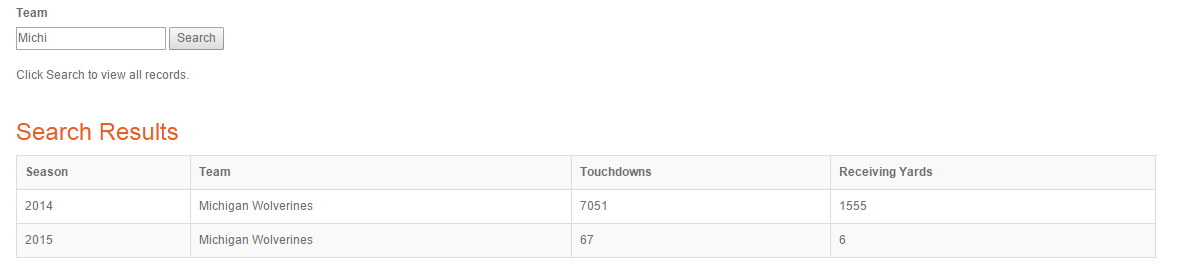
Figure 14: Search page
Note
If the form is left blank, the page displays the current statistics of all the teams.
The edit page displays two features: add and delete. From the edit page, users can also navigate to the update page, where they can change any team’s statistics. Users can enter a new team’s statistics with the add form. The form requires the selection of the season and the team data from the respective drop down menus. The statistics values of the team is entered manually.
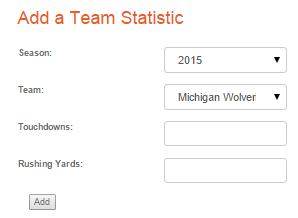
Figure 15: Add feature
Users can also delete any statistics on the edit page as they wish. The delete feature is displayed right below the add feature. The feature displays a checklist, from which the user selects the team whose statistics data they want to delete. Only one team’s statistics data can be deleted at a time.
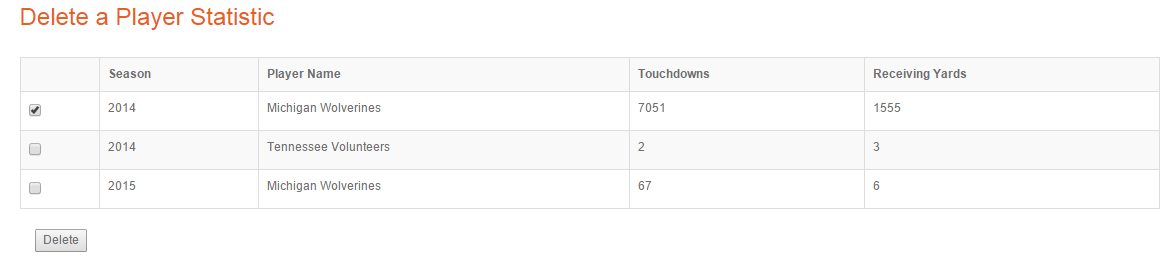
Figure 16: Delete feature
The update page displays a checklist of all the team statistics. From here, the user can select the team whose statistics they want to update, and can enter the respective values. The page redirects to itself, showing the current list of all teams and their statistics.
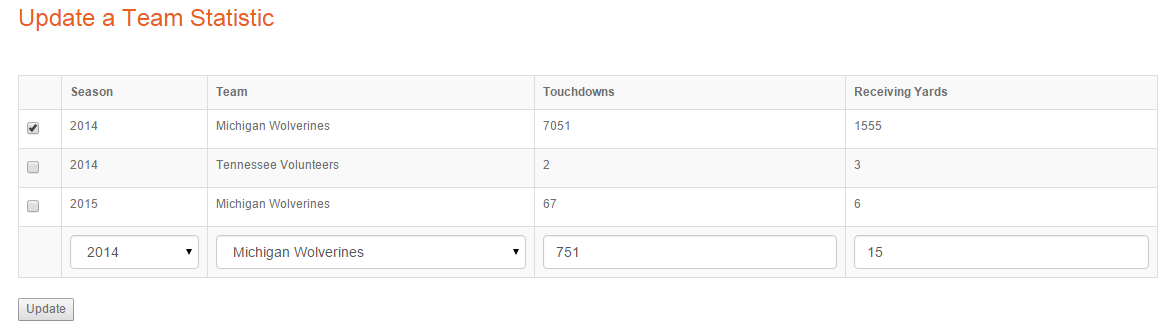
Figure 17: Update page